
This is an old revision of the document!
ISC Inventory
Preview:
This documentation will explain for both users and inventory administrators how to use Snipe-IT.
There will be two parts.
- The first part will concern the users
- The second one will concern the inventory administrators
This documentation may be subject to modifications.
First Part
Like said before, this part will be more from the users perspective.
Here are the different parts that'll be mentionned in it:
- Users permissions
- What is Snipe-IT ?
- How to log into Snipe-IT ?
- How to make a request to borrow an item
Users permissions
Every non-administrator user will have the following permissions in Snipe-IT.
Read Permissions only for
- Assets
- Licenses
- Accessories
- Consumables
- Components
What is Snipe-IT ?
Snipe-IT is an open-source IT asset management system that is used to track and manage multiple types of assets:
- Hardware and devices (Assets)
- Software licenses (Adobe Creative Cloud licence, …)
- Accessories (Mouse, Keyboard, …)
- Consumables (Items that are used by time and need to be replaced ⇒ Printer ink, batteries, …)
- Components (RAM, CPU, …)
This software also allows temporary loans and permanent assignements of devices to users
How to log into Snipe-IT ?
First, you'll have to access it by using the following link : “https://isc-inventory.isc-vs.ch”.
Then you'll have to log in by using the credentials that they were transmitted to you.

Once connected, you'll be redirected towards the main dashboard (user perspective).
If you need to borrow or take an item from the inventory, you'll have to reach out Steve Devènes by Teams or by Outlook.
How to make a request to borrow an asset ?
This section will show how a user can make a request to borrow an asset.
This only works with “Assets” and not with the other items.
First, you need to go to the sidebar menu (1). Then you search the “Requestable items” that is represented with a laptop icon (2).
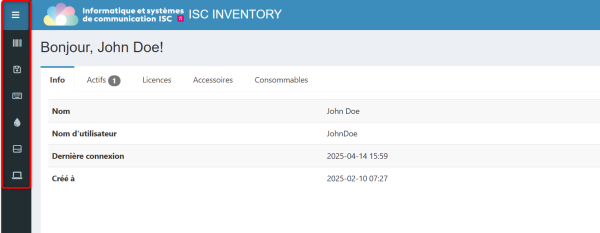
From there, you'll be able to see which assets are available for a borrow request.
To do it, you'll have to click on the “Request” button that is located on the right side.

Once it's done, the inventory administrator will be able to check the requests and can either checkout the asset (it means that the request is accepted) or refuse it.
So if you want to borrow anything else than an asset, you'll have to reach out to the inventory administrator mentionned above.
Second Part
This part will be for the inventory administrators.
Here are some examples of functionnalities:
- Set requestable assets
- Check for requests about requestable assets
- Assigning an asset to a permanent user
- Assigning an item to a user temporarily
- Managing users and groups
How to set requestable assets ?
This functionnality only works with Assets like the second one that will be showed later in the documentation.
First, you'll have to go to “Assets” and select the asset that you want to make it available for requests. Once opened, you'll have to select “Edit asset”.
After that, you'll have to go down in the options until you find the checkbox “Requestable”.
From there, you'll have to check that option and save the changes. Once it's done, you can do the same process for other assets that can be requested.
To check the requestable assets (from a user perspective), you need to go to the sidebar menu and search for a barcode symbol (it represents the assets) and from it, search for an option “Requestable”.
How to assign assets to a user permanently ?
This use case can be used when a user wants to take an item from the inventory with the ISC sector manager Pierre-André Mudry agreement.
To do that, you'll have to edit the assets then search for the checkbox “BYOD”. Once you found it, you'll have to check it and save the changes.
How to assign an item to a user temporarily ?
This part will explain the main method to assign items to a user in SNIPEIT.
It works with all types of items.
First of all, you'll have to go to the category of item that you want to assign and then select the item(s) that need to be assigned.
On the right of the items, you'll either see a “